Split a receipt by item, so everyone pays for what they ate.
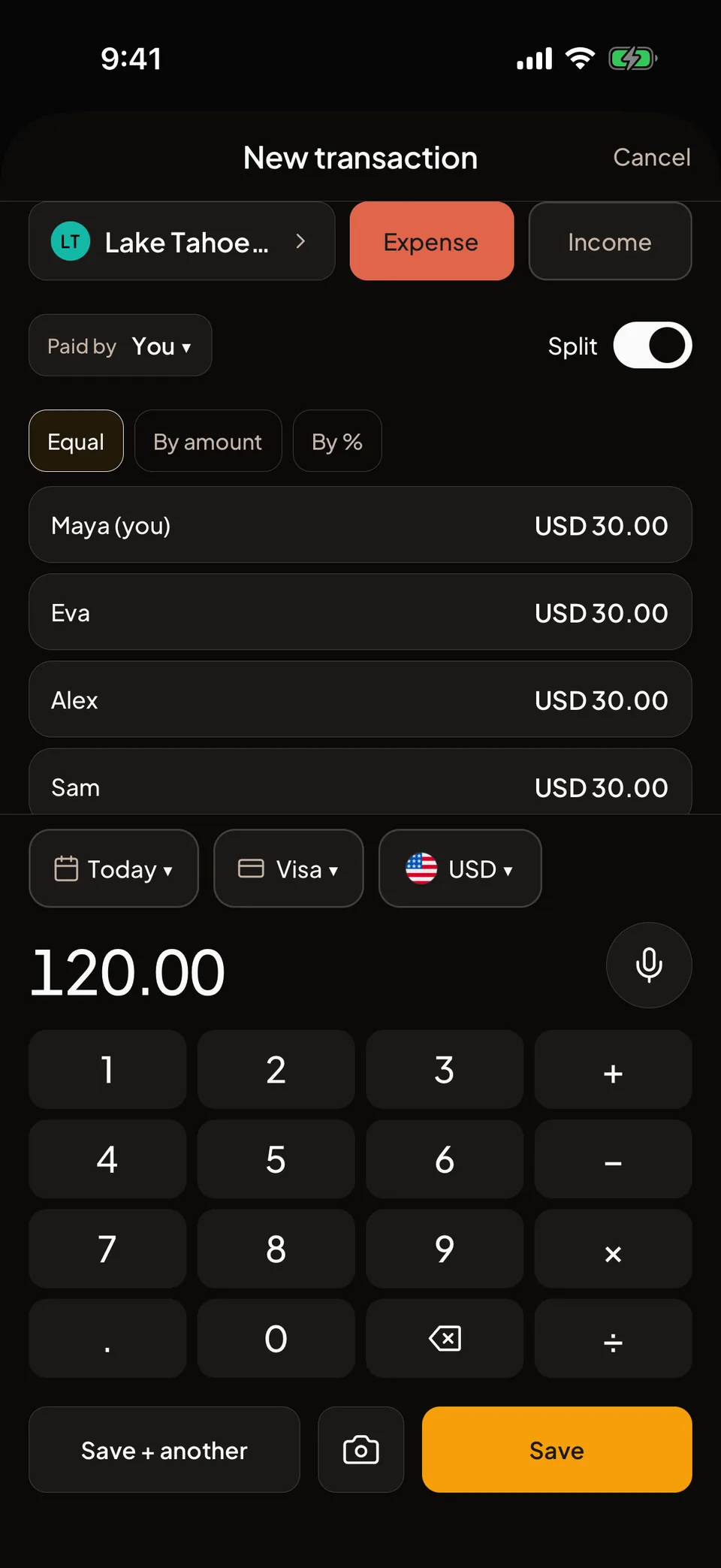
Scan the receipt from a shared cashbook's transaction screen, then assign each line to the members who had it. Tax and tip follow in proportion. When a purchase needs no item list, the Split switch on any transaction divides it Equal, By amount or By %.
From a photo to a split in four steps.
Scan the receipt
On the transaction screen of a shared cashbook, tap the camera button. Take a photo or choose one from your library, and check the fields on Confirm details. Scan receipt on Home reads a receipt too, but it does not offer the item split.
Choose to assign items
If you started the scan from a shared cashbook and Folko read the lines, it asks Assign items to members? Say yes. Say no and the total opens on the new transaction screen, where you can turn on Split and choose Equal, By amount or By %. A cashbook with one member skips the question.
Tap members to claim
Tap the members who had each line. Claim all for me and Clear all handle the bulk cases. An item nobody claims is shared equally across the members.
Split and save
The Split summary shows what each member owes. Tax and tip are split in proportion to what each person claimed. Tap Split and save, or Log as single expense to skip the split.
The item screen opens from the scanner.
The item-by-item screen is called Split receipt. You do not open it from the menu. It appears after a scan, once you answer yes to the assign question, and it needs a connection.
You are the payer of the entry. Everyone else owes you their share, so the amounts land in Balances like any other split, and Smart Settle can fold them in with the rest.
Assignments lock after you save, so check the Split summary first.
Receipts rarely sum cleanly.
If the items plus tax and tip differ from the receipt total, Folko says so and shows the gap. An Adjustment row appears. Charge the difference and split it like the other items, or assign it to yourself. You can also edit an item amount.
If Folko cannot read the prices, it tells you and you enter the split by hand. A discount that would leave someone owed money is refused until you assign it to yourself or edit the amounts.
One entry can also be split across categories. You edit it as a single purchase, with one description and date for every line.
Splitting without a receipt.
In a shared cashbook, turn on Split on the new transaction screen. Equal divides the amount between the members. By amount lets you type each share, and the shares must total the transaction. By % does the same in percentages and must reach 100%.
Scans are limited by plan. Free includes 3 a month. Plus and Max have unlimited scans. Going back from a receipt that was already read and scanning it again uses another scan.
What happens to the picture.
Folko asks before the first scan. If you allow it, the photo is sent to Google’s Gemini AI to read the receipt. Only the photo is sent, with no name and no account details. Folko does not keep it. If you tap Not now, nothing is uploaded.
Receipt split, answered.
Does splitting a receipt by item cost anything?
Scanning counts against your monthly scans. Free includes 3 a month. Plus and Max have unlimited scans.
What happens to the photo of my receipt?
Before the first scan, Folko asks you to allow it. Only the photo is sent to Google’s Gemini AI, with no name and no account details. Folko does not keep it. Google does not use it to train its AI models and may keep it briefly to check for abuse.
What if the items do not add up to the receipt total?
Folko shows the difference and adds an Adjustment row. You can edit an item amount, or charge the difference and either split it like the other items or assign it to yourself.
Can I still split a purchase without scanning anything?
Yes. In a shared cashbook, turn on Split on the new transaction screen and choose Equal, By amount or By %. It works on any amount you type.
Coming to iOS and Android.
Free forever. Send us a note and we’ll write back the day it’s out.
Notify me at launch