An expense tracker for self-employed work, with a mileage log and a tax-year report.
Work mode lets you tag business transactions in the same app, so they are easy to pull out for the year. Tag a transaction as business, log your drives, and export the year when your accountant asks for it. Work mode is included with Max.
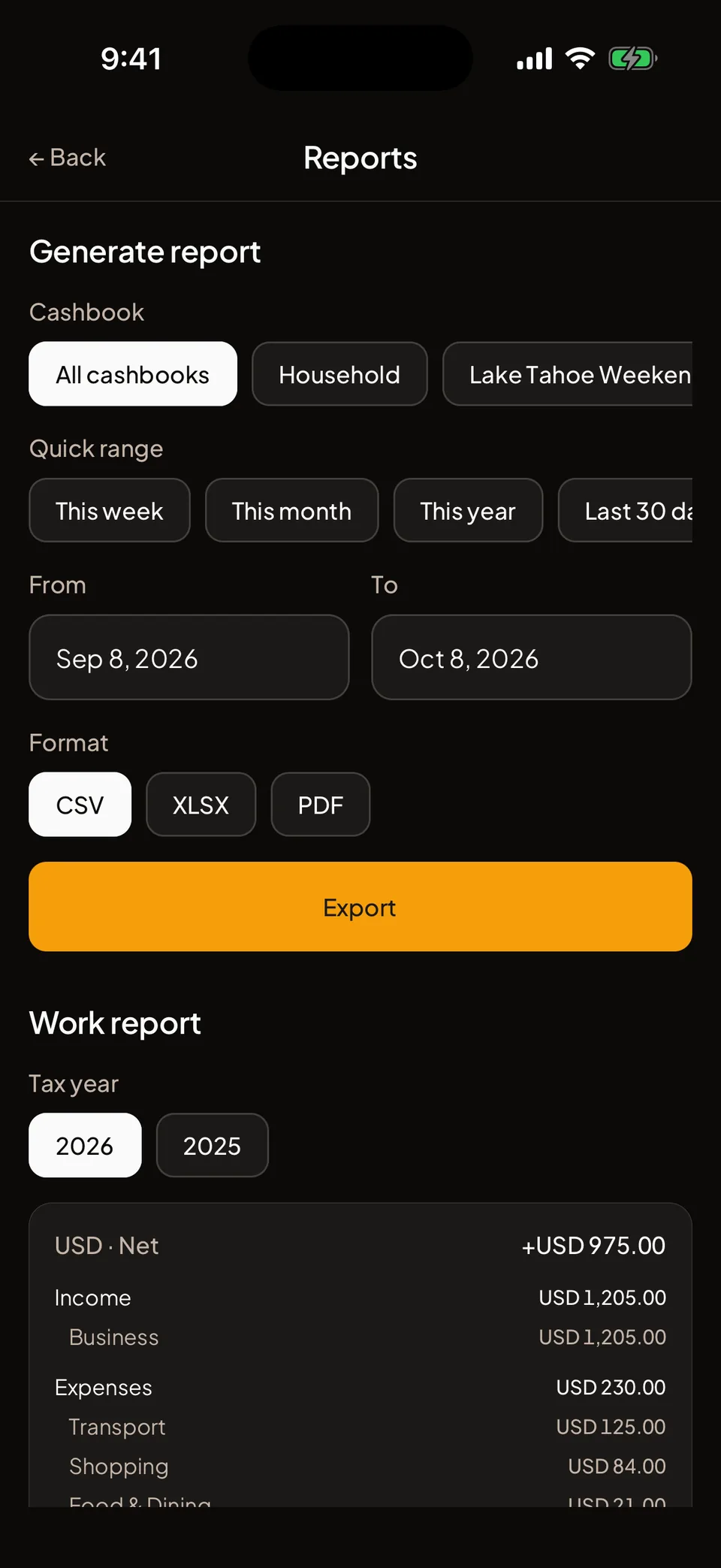
From switch to tax-year report in four steps.
Turn on Work mode
Open Profile. Under Work mode, switch on Work mode. Turning it on needs Max.
Tag business transactions
When you log a transaction, tap Business to tag it. You can tag or untag an existing transaction from its detail screen.
Log your drives
In Profile, open Mileage. Enter the date, the distance in km or mi, and the purpose.
Export the year
Open Reports. In Work report, pick the tax year and export.
How do I keep business expenses separate?
Work mode adds a Business chip to Add transaction. It sits with the other options, so tagging adds no extra screen. You can tag income as well as expenses, which is useful when a client pays you.
Business transactions live in your normal Cashbooks next to everything else. The tag only decides what goes into the Work report. The report reads across all of your Cashbooks, including archived ones, so a business transaction is not missed because of where you logged it.
Only the transactions you logged yourself go into your report. A business transaction logged by another Member of a shared cashbook is not included in yours.
How do I log business mileage?
The Mileage screen has a short form: a date, a distance, a unit and a purpose. The unit is km or mi. The purpose is optional. The date cannot be in the future.
Entries sit in a list below the form, and you can delete any of them. Mileage is distance, so Folko never adds it to money. Kilometres and miles are totalled separately.
What does the tax-year report contain?
The Work report covers one tax year, which is the calendar year. You can pick this year or last year. Before you export, Reports shows the totals on screen.
For each currency, it totals your business income, your business expenses and the net, with the categories under each. Currencies are never added together, because a total that mixes two currencies means nothing. Your mileage follows, with the total distance for each unit.
The export includes the business transactions and the mileage log. It comes as CSV, Excel or PDF. In a CSV, the mileage is a second block under the transactions. In an Excel file, mileage has its own sheet. In a PDF, it is a table after the transactions.
If there are no business transactions and no mileage for that year, Folko tells you there is nothing to export.
Folko adds up what you tag. It does not tell you what is deductible, and it does not file anything. Check the figures with an accountant or your tax authority.
Work mode, answered.
Which plan includes Work mode?
Work mode is included with Max. Free and Plus can turn it on only after upgrading.
What does the tax-year report contain?
For the year you pick, it lists your business transactions and your mileage log. Business income, business expenses and the net are totalled separately for each currency, and mileage is totalled separately in kilometres and miles.
What is the tax year?
The calendar year, 1 January to 31 December. The report offers this year and last year.
Does Folko tell me what I can deduct?
No. Folko records and totals what you tag. What counts as deductible depends on your tax authority, so check the report with your accountant.
What happens if I turn Work mode off?
The Business chip and the Mileage entry disappear. Transactions you already tagged stay tagged.
Coming to iOS and Android.
Free forever. Send us a note and we’ll write back the day it’s out.
Notify me at launch